Category: Enterprise

  • Restore testing and your real recovery time

    Restore testing and your real recovery time

    Part 3 of 3 in the Surviving ransomware series. Part 1: Backups an attacker can’t delete. Part 2: Segmentation and limiting lateral movement.

    Ask a team for its recovery time objective and you’ll usually get a confident number, often 4 hours or 24 hours. Ask when they last restored a whole system from backup and timed it, and the confidence fades. In my experience the RTO on the slide and the recovery time you’d actually get differ by a factor of several, and nobody finds out until the day it matters.

    This is the final part of the series. Part 1 was about backups an attacker can’t delete, and part 2 about segmentation that limits how much gets hit. Now the unglamorous question: once you have clean backups, how long does it really take to be running again?

    Two numbers, defined honestly
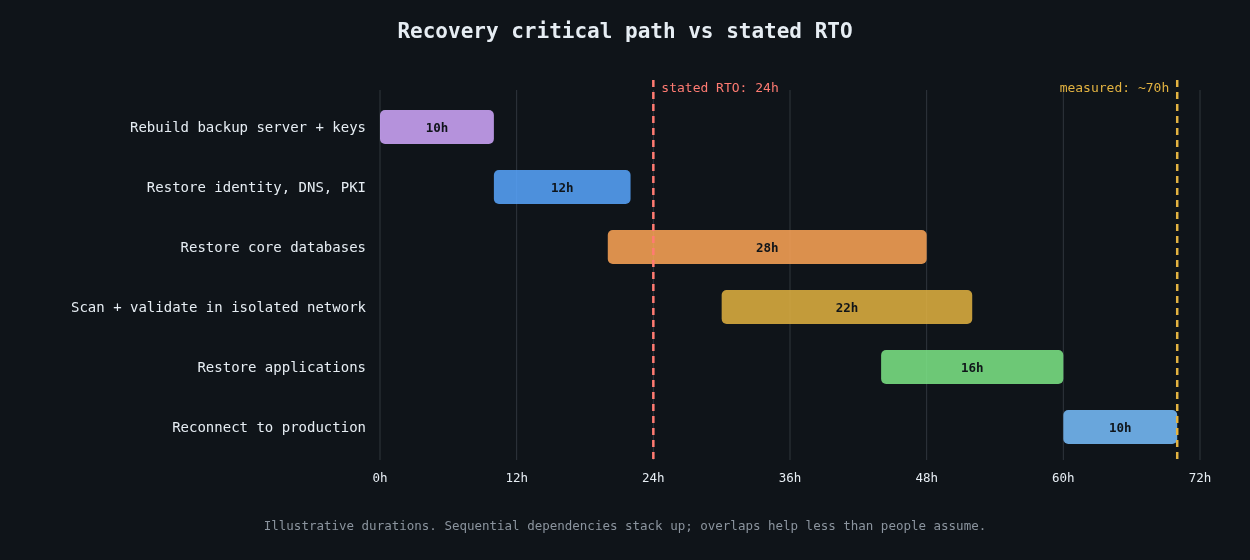
    Illustrative recovery timeline in dependency order compared with a 24-hour stated RTO

    The recovery point objective (RPO) is how much data you can afford to lose, measured as time between the last good copy and the incident. The recovery time objective (RTO) is how long you can afford to be down. Both are business decisions. Neither is something the backup software sets for you.

    The trap is that people derive RTO from the time it takes to restore one file or one VM, then quietly assume the whole estate restores in parallel at that speed. It doesn’t, for two reasons: bandwidth and dependencies.

    Do the arithmetic before the drill

    Restore throughput is usually far below the vendor’s quoted ingest speed, because restores are bottlenecked by whatever’s slowest: deduplication rehydration, the network link, the target storage’s write rate, or the cloud egress path. Measure it, then do the multiplication.

    # Wall-clock hours to move data at a sustained restore rate
    def restore_hours(terabytes, mb_per_sec):
        return terabytes * 1_000_000 / mb_per_sec / 3600
    
    for tb, rate in [(5, 500), (50, 500), (50, 200), (200, 1000)]:
        print(f"{tb:>4} TB at {rate:>4} MB/s: {restore_hours(tb, rate):6.1f} h")
       5 TB at  500 MB/s:    2.8 h
      50 TB at  500 MB/s:   27.8 h
      50 TB at  200 MB/s:   69.4 h
     200 TB at 1000 MB/s:   55.6 h

    If your critical data is 50 TB and your measured restore rate from the immutable tier is 200 MB/s, a 24-hour RTO isn’t achievable, regardless of how good everything else is. You find that out with a calculator in five minutes, or during an incident in three days.

    Dependencies decide the order

    You can’t restore the order system until there’s something for it to authenticate against. A realistic recovery runs in layers. First the backup infrastructure itself has to be up, along with its catalogue and its encryption keys. If the backup server was encrypted too, you’re rebuilding it from scratch before restoring anything else. Then identity and core network services: Active Directory or your identity provider, DNS, DHCP, PKI and time. Then the data stores, then the applications on top of them, then everything else.

    Maersk’s NotPetya recovery is the famous example of how fragile that first layer can be. As reported by Wired, its domain controllers had all been wiped except one in Ghana, which survived only because a power outage had taken it offline before the attack. That single machine became the seed for rebuilding the company’s Active Directory. Don’t plan on a lucky power cut.

    Write the dependency order down, along with who restores each layer and roughly how long each takes. Then look at the critical path. Sequential layers add up, and the result is usually much longer than the RTO anyone quotes.

    Pick a clean restore point

    After ransomware, the newest backup is often the wrong one. The attacker may have been inside for days or weeks, with tools planted, accounts created and scheduled tasks waiting. Restoring last night’s backup can restore the intrusion.

    This is where the logging work from the Detection engineering series pays off. To pick a restore point you need a reasonably confident time of first compromise for each affected system. Then you restore into an isolated recovery network, scan the restored systems, check them against known indicators from the investigation, reset every credential, and only then reconnect them. Budget time for this. In a real incident it often takes longer than the data copy.

    Automate the boring restore tests

    A backup you haven’t restored is a hypothesis. The cheapest way to keep testing it is to automate small restores constantly and big ones regularly.

    Automated tests should check the application, not just the files. A database restore test that confirms the dump file exists proves very little. One that restores into a scratch instance, runs real queries and records how long it took proves a lot:

    #!/usr/bin/env bash
    set -euo pipefail
    start=$(date +%s)
    
    dropdb --if-exists -h restore-test.internal orders_check
    createdb -h restore-test.internal orders_check
    pg_restore -h restore-test.internal -d orders_check --jobs=8 \
      /restore/latest/orders.dump
    
    # The data should be recent and non-trivial
    recent=$(psql -h restore-test.internal -d orders_check -Atc \
      "select count(*) from orders where created_at > now() - interval '2 days'")
    [ "$recent" -gt 0 ] || { echo "restore is stale or empty"; exit 1; }
    
    echo "restore_seconds=$(( $(date +%s) - start )) recent_rows=$recent"

    Run something like this weekly against a randomly chosen system, ship the timing to your metrics system, and alert when a test fails or when restore time creeps past what the RTO allows. Over a few months you get a real, measured recovery time per system, which is worth more than any number on a slide.

    Run a full drill at least once a year

    Automated tests cover individual systems. They don’t cover the dependency chain, the people, or the coordination. Once a year, more often for critical services, run a drill that restores a meaningful slice of production into an isolated environment from the immutable or offline copies, in dependency order, with the people who’d actually do it.

    Assume the worst during the drill: the primary backup server is gone, the identity provider is down, and the wiki with the runbooks is encrypted. Keep printed copies of the recovery runbook, the dependency order, key contacts and break-glass procedures somewhere physical. Have an out-of-band way to communicate, since your email and chat may be part of what’s down.

    Time every step. The drill’s output isn’t a pass or fail. It’s a list of measured durations and a list of things that surprised you.

    Report the real number

    After the drill, publish the measured recovery time next to the RTO, per service, to the people who set the RTO. If they differ, that’s a business decision to make with real data: spend money on faster restores, change the architecture, or accept a longer outage knowingly. Any of those is fine. Finding out during an incident isn’t.

    If you only do one thing after reading this, pick a single important system, restore it somewhere isolated this week, and time it. That number will tell you more about your ransomware readiness than any policy document.

  • Segmentation and limiting lateral movement

    Segmentation and limiting lateral movement

    Part 2 of 3 in the Surviving ransomware series. Part 1: Backups an attacker can’t delete.

    When NotPetya hit in June 2017, it didn’t need anyone to click anything after the first infection. It spread across networks on its own, using the EternalBlue exploit for SMBv1 (MS17-010) and credentials harvested from memory on machines it had already reached, then running itself remotely with legitimate Windows tools. Maersk lost tens of thousands of machines in a few hours. The White House later put the total global damage at more than $10 billion.

    What made it so destructive wasn’t novel malware engineering. It was flat networks and shared credentials. Every compromised machine could reach thousands of others, and many of them would accept the same admin password.

    Part 1 of this series covered backups an attacker can’t delete. This part is about making the attacker’s path to those backups, and to everything else, as short and noisy as possible.

    Two kinds of segmentation

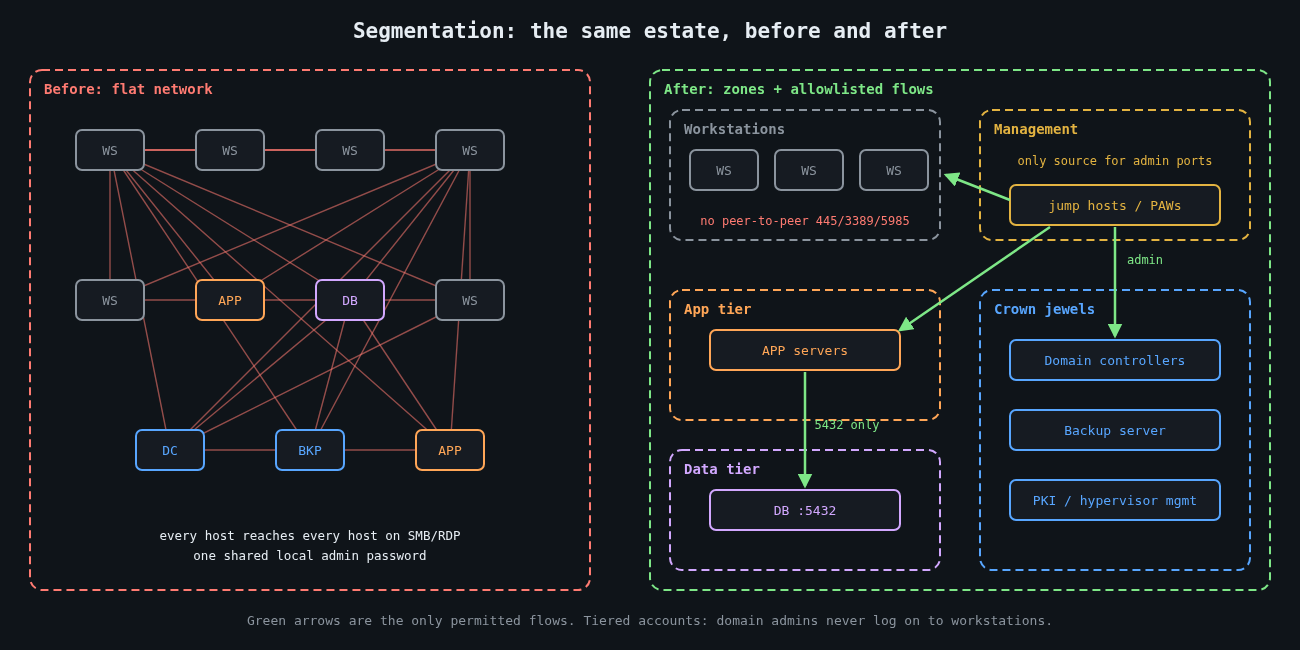
    Flat network compared with a segmented network of zones and allowlisted flows

    Most people think of segmentation as VLANs and firewalls. That’s half of it. The other half is identity segmentation: which credentials exist on which machines. An attacker moves laterally by combining reachability (can I connect to that host?) with authority (do I have a credential it accepts?). Take away either one and the move fails.

    Network segmentation limits reachability. Identity segmentation limits the value of whatever credentials an attacker steals. You need both, and the identity half is usually cheaper.

    Workstations shouldn’t talk to each other

    In most offices there’s no business reason for one laptop to open an SMB, RDP or WinRM connection to another laptop. Yet in a default Windows domain with file sharing enabled, that’s exactly what’s allowed, and it’s how a single phished laptop becomes fifty.

    Block it. Inbound SMB (445), RDP (3389) and WinRM (5985 and 5986) on workstations should only be accepted from a small management subnet where your admin jump hosts and management tools live. In Group Policy you’d scope the inbound firewall rules to that subnet. The PowerShell equivalent on a single machine shows the idea:

    # Allow inbound SMB, RDP and WinRM only from the management subnet
    $mgmt = "10.20.0.0/24"
    Get-NetFirewallRule -DisplayGroup "File and Printer Sharing",
                                      "Remote Desktop",
                                      "Windows Remote Management" |
      Where-Object { $_.Direction -eq "Inbound" -and $_.Enabled -eq "True" } |
      Set-NetFirewallRule -RemoteAddress $mgmt

    Then check it from an ordinary workstation, not from the admin network:

    Test-NetConnection -ComputerName ws-0142 -Port 445
    # TcpTestSucceeded : False   <- what you want to see

    I’ve watched this single change turn a domain-wide incident into a handful of machines. It’s dull, it’s cheap, and it breaks almost nothing.

    Servers get allowlists, not blocklists

    Servers are harder because they do need to talk to each other, just not to everything. Start from observed flows. VPC flow logs, NetFlow from your switches, or a few weeks of host firewall logging will show you what actually connects to what. Then write rules that permit those flows and drop the rest.

    On a Linux database server, the host firewall alone can enforce most of it:

    # /etc/nftables.conf (excerpt)
    table inet filter {
      chain input {
        type filter hook input priority 0; policy drop;
        ct state established,related accept
        iif "lo" accept
        ip saddr 10.20.0.0/24 tcp dport 22 accept     # admin jump hosts only
        ip saddr 10.30.1.0/24 tcp dport 5432 accept   # application tier only
        icmp type echo-request limit rate 5/second accept
      }
    }

    Host firewalls and network firewalls complement each other. The network layer protects you when a host is misconfigured, and the host layer protects you from the neighbour in the same VLAN. Microsegmentation products automate this at scale, but the principle doesn’t need a product.

    Tier your admin accounts

    Microsoft’s tiering guidance, now folded into its enterprise access model, boils down to one rule: a credential that controls a high-value system must never be typed into, or cached on, a lower-value system. Domain admin accounts don’t log on to workstations. Server admin accounts don’t log on to workstations either. Help desk accounts that do manage workstations have no rights on servers.

    When an attacker dumps credentials from a compromised laptop, tiering decides what they find. With it, they get the laptop user and maybe a workstation-admin account. Without it, they often get domain admin, because someone remoted in to fix a printer driver last month.

    The supporting controls are well documented and mostly free:

    • Windows LAPS, built into Windows since the April 2023 updates, gives every machine a unique, rotated local administrator password, which kills the “same local admin password everywhere” path NotPetya-style tools rely on.
    • The Protected Users group stops its members’ credentials from being cached in ways that are easy to steal, and blocks NTLM authentication for them.
    • Credential Guard isolates secrets in virtualisation-based security so that memory scraping on the endpoint returns far less.
    • Restricting or auditing NTLM reduces relay and pass-the-hash opportunities. Start in audit mode, because something old in your environment will depend on it.

    Admins work from dedicated privileged access workstations or jump hosts in the management subnet. That’s what makes the firewall scoping above workable.

    Put the crown jewels behind their own door

    Some systems deserve their own zone with its own entry controls: domain controllers, backup infrastructure, hypervisor management, PKI, and identity providers. As covered in part 1, the backup server in particular shouldn’t be reachable from general server networks, and shouldn’t trust the production domain.

    The test I use is simple. Pick a random workstation and a random application server, assume both are fully compromised, and ask how many hops it takes to reach a domain controller or the backup console. If the answer is “one” or “it’s in the same VLAN”, that’s your next project.

    See the east-west traffic

    Segmentation also makes detection easier, because it creates boundaries where unusual traffic stands out. A workstation attempting SMB connections to forty other workstations in five minutes should alert. So should a service account authenticating to hosts it has never touched before, or remote service creation (Windows event 7045) on machines where nobody deploys software that way. Firewall drop logs between zones are a gift here: once the rules are tight, almost every drop is worth a look.

    Expect it to be incremental

    Nobody segments a flat network in a quarter. Start with the workstation peer-to-peer block and LAPS, which together cover a huge share of real-world spread. Then tier the admin accounts, then wall off the crown jewels, then work through server allowlists one application at a time.

    Even perfect segmentation won’t stop every incident. It buys time and turns a company-wide outage into a contained one, which matters a great deal when you get to part 3: actually restoring what was hit, and finding out how long that really takes.

    Other parts: Part 1: Backups an attacker can’t delete. Part 3: Restore testing and your real recovery time.

  • Backups an attacker can’t delete

    Backups an attacker can’t delete

    Part 1 of 3 in the Surviving ransomware series.

    Modern ransomware crews don’t start by encrypting things. They start by finding your backups. The playbook described in incident reports from the last few years is depressingly consistent: get domain admin, locate the backup server, delete the restore points or wipe the repository, and only then run the encryptor. If the backups survive, the ransom demand is a negotiation. If they don’t, it’s a hostage situation.

    So the question for this series isn’t “do we have backups?” Almost everyone does. It’s whether an attacker who holds your most privileged credentials can destroy them.

    3-2-1 was written for a different threat

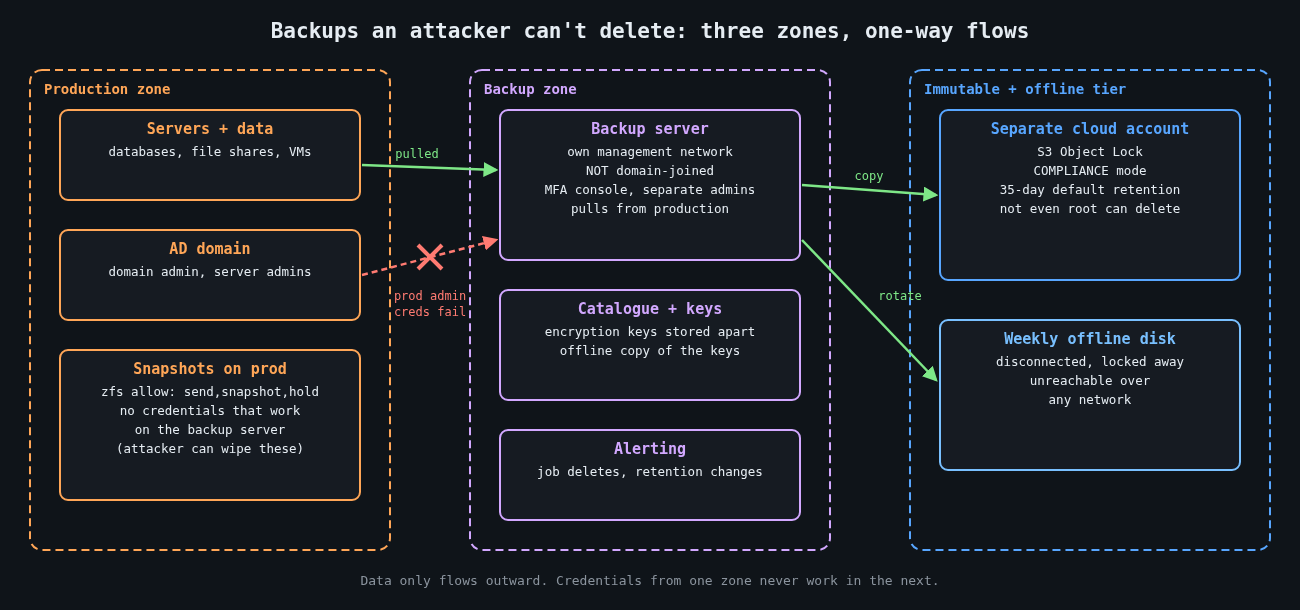
    Backup architecture with production, backup and immutable zones and one-way data flows

    The classic 3-2-1 rule says three copies of your data, on two different types of media, with one copy offsite. It’s a great rule for fires, floods and failed RAID controllers. It says nothing about an adversary who logs in with valid credentials and deletes all three copies, because in most environments the same admin accounts can reach all of them.

    The extension you’ll often see now is 3-2-1-1-0. The extra 1 is a copy that is offline, air-gapped or immutable. The 0 is zero errors when you verify a restore. I like it because both additions target the actual failure modes: deletion by a privileged attacker, and backups that turn out to be unrestorable on the worst day of your year.

    The backup system is a target in its own right

    Backup servers are attractive because they hold everything and they usually hold credentials to reach everything. CVE-2023-27532 in Veeam Backup & Replication is a good illustration. It let an unauthenticated user who could reach the backup service port pull encrypted credentials out of the configuration database. It was exploited in the wild and added to CISA’s Known Exploited Vulnerabilities catalog in August 2023.

    The lessons I take from it are architectural rather than vendor-specific:

    • Put the backup server’s management interfaces on a network segment that ordinary servers and workstations can’t reach.
    • Don’t join backup infrastructure to the production Active Directory domain. If domain admin is compromised, the backup console shouldn’t fall with it.
    • Require MFA for the backup console and for any cloud account that holds backup copies, using accounts that exist only for that purpose.
    • Patch backup software on the same urgency as internet-facing systems, because for an intruder it effectively is one.

    Immutability, done properly

    Immutable storage means a backup can’t be modified or deleted until its retention period ends, no matter who asks. The details decide whether it holds up against a real admin-level compromise.

    On AWS, S3 Object Lock has two modes. Governance mode can be bypassed by users with the s3:BypassGovernanceRetention permission, which makes it useful against mistakes and useless against someone who has stolen an admin role. Compliance mode can’t be shortened or removed by anyone, including the account root user, until the retention date passes.

    aws s3api create-bucket --bucket example-backups-immutable \
      --region us-west-2 \
      --create-bucket-configuration LocationConstraint=us-west-2 \
      --object-lock-enabled-for-bucket
    
    aws s3api put-object-lock-configuration \
      --bucket example-backups-immutable \
      --object-lock-configuration '{
        "ObjectLockEnabled": "Enabled",
        "Rule": { "DefaultRetention": { "Mode": "COMPLIANCE", "Days": 35 } }
      }'

    Test with a small bucket and short retention first. Compliance mode is unforgiving: if you set a year by mistake, you’re paying for that storage for a year.

    Put the bucket in a separate AWS account dedicated to backups, with its own tightly held credentials, so production compromise doesn’t hand over the backup account too. The same idea applies to other clouds and to on-premises object stores that support WORM retention.

    For self-hosted setups, I prefer a pull model. The backup server reaches into production to fetch data, and production holds no credentials that work on the backup server. With ZFS, the source host can delegate just enough to a dedicated user:

    # On the production host: allow the backup user to snapshot and send, nothing else
    zfs allow -u backupsvc send,snapshot,hold tank/data

    The backup server then pulls incremental snapshots over SSH and keeps its own snapshot history. An attacker with root on the production host can destroy production’s snapshots, but has no path to the copies on the backup server.

    Retention has to outlast the intrusion

    Immutability with seven days of retention doesn’t help if the attacker was inside for three weeks before encrypting anything, because every restore point you have may contain their tooling, or their changes to your data. Mandiant’s M-Trends 2024 report put median global dwell time at 10 days in 2023, and the median isn’t the case you should plan for.

    I’d treat 30 days of immutable restore points as a floor, with a longer, sparser tail (weekly or monthly) beyond that. Part 3 of this series covers how to pick a clean restore point, which depends heavily on having logs that tell you when the intrusion started.

    Offline still has a place

    Tape and removable disks rotated offsite feel old fashioned, and they’re slow. They’re also the one copy that no network-borne attacker can touch. For a smaller organisation, a weekly full backup to a disk that’s disconnected and locked away is a cheap and effective last line. Keep the backup encryption keys stored separately from the backups, including an offline copy, because encrypted backups you can’t decrypt are no backups at all.

    Watch for attacks on the backups

    Deleting backups is noisy if you’re listening. Alert on deletion or retention changes in backup jobs, on someone disabling Volume Shadow Copy or running vssadmin delete shadows, on failed or skipped jobs across many systems at once, and on new admin accounts in the backup console. These events often precede encryption by hours. That’s your window.

    The zero errors part

    The final 0 is the one most often skipped. A green “job succeeded” status means data was written somewhere. It doesn’t mean you can restore a working system from it in a reasonable time. Part 3 is about proving that, with real restore tests and measured recovery times. Before that, part 2 looks at segmentation, which decides how far an intruder gets before they reach the backup server at all.

    Other parts: Part 2: Segmentation and limiting lateral movement. Part 3: Restore testing and your real recovery time.