Part 1 of 7 in the Hardware hacking series.
I do most of my soldering and rework with a Pine64 Pinecil V2, and it is the first tool in this series because it is the one I touch every time I open a device. This series is about the bench gear I actually own: the Pinecil, an FTDI serial cable, a cheap logic analyzer, an XGecu T48 programmer and a probe frame for chips I don’t want to desolder. Everything here is done on my own hardware, from the defender’s side. If you understand how a device looks from the inside, you know what an attacker with ten minutes and a screwdriver can learn about it.
Firmware first, then. A soldering iron that talks USB-C power delivery and Bluetooth is a small computer, and it deserves updates like any other. The V2 runs IronOS, the open source firmware by Ralim, on a Bouffalo BL706 chip.
Which release and which file
As I write this (October 2026) the latest stable IronOS release is v2.23, published on 31 August 2025. Its changelog has a few items I care about: Bluetooth LE is now off by default on the V2, the default USB-PD negotiation uses a more conservative profile, and there are fixes for PD supplies that caused reboots with some laptops. Bluetooth support for the V2 first arrived in v2.21, so if you are on v2.21 or v2.22 this update switches it off by default, and anything older has no Bluetooth to switch off.
The release page lists assets for every supported iron. For the V2 you want Pinecilv2.zip. The similarly named Pinecil.zip is for the original V1, which uses a different chip and a different file format.
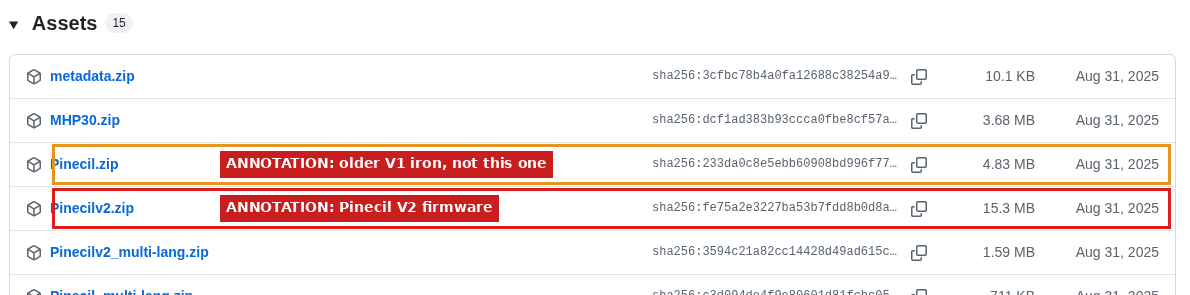
That screenshot is the real GitHub page, with the two boxes and labels added by me. GitHub also shows a SHA-256 digest for each asset. After downloading I compared it with the local file:
$ sha256sum Pinecilv2.zip
fe75a2e3227ba53b7fdd8b0d8a362fc2ff0af264ce442ba76e26f21a3abb7503  Pinecilv2.zip
That matches the full SHA-256 digest GitHub’s API reports for the asset (the release page truncates it, so compare all 64 characters, not just the start). It only proves the file I got is the file GitHub is serving, which is still worth ten seconds. Inside the zip there is one .bin per language. I use Pinecilv2_EN.bin, 194,508 bytes in this release. Ignore the .dfu and .hex files for a normal update. Pine64’s wiki is explicit that flashing a .dfu as firmware leaves the iron unable to boot.
Putting the iron in flash mode
This is the one step you can’t do from software. First a safety note: let the tip cool completely and park the iron in its stand before you unplug it or start fiddling with cables. If it boots normally instead of staying black, it is a live iron on a USB supply, so unplug it straight away rather than pressing buttons. Now unplug everything, hold the minus button, and only then plug the USB-C cable into the iron. Pine64’s wiki says to keep holding for around 10 to 15 seconds after plugging in. If the screen stays black, you are in flash mode. If it boots normally, unplug and try again, because the order matters.
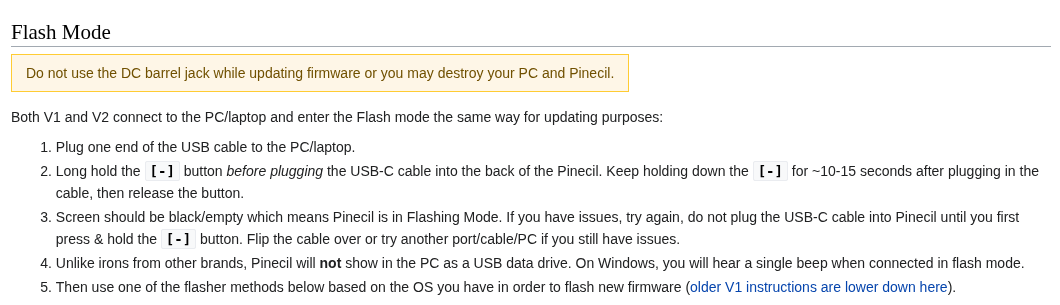
The warning at the top of that section is not decoration. Pine64’s wiki says that using the DC barrel jack during a firmware update may destroy both your computer and the Pinecil, and that the iron is designed to use only one power port at a time. So for the whole update only the USB-C cable goes in: no barrel jack, no second supply, nothing on the other rear port.
I have not photographed the iron’s own screen and buttons for this post yet, so the black-screen state and the on-device menus are described here rather than shown. In flash mode the iron does not appear as a USB drive. According to the wiki it shows up on Linux as a ttyACM serial device, and Windows lists it as a COM port.
Flashing with blisp
blisp is Pine64’s command line flasher for Bouffalo chips, and it is what I would reach for first. Version 0.0.5 (August 2025) is the current release and there are prebuilt binaries for Linux (x86_64, aarch64, armv7, riscv64), macOS and Windows. Unzip it, put it next to the .bin and run:
sudo ./blisp write -c bl70x --reset Pinecilv2_EN.binOn Windows it is .\blisp.exe write -c bl70x --reset .\Pinecilv2_EN.bin from an administrator terminal, and the leading .\ matters. I can’t plug the iron into the machine I used for the screenshots, so I ran the real tool with no iron attached, in a throwaway Ubuntu 24.04 container:
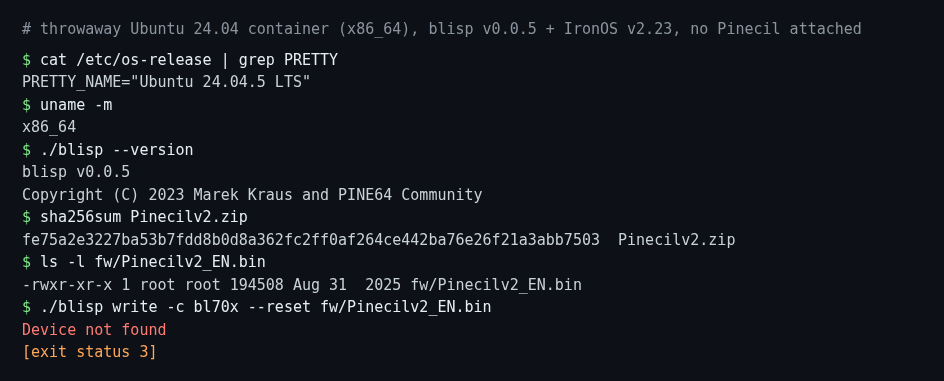
“Device not found” with exit status 3 is what you get when the iron isn’t in flash mode, or when the cable is charge-only. If you see it with the iron attached, check the troubleshooting list below. I haven’t seen the success output because there was no iron on that machine. With --reset, blisp restarts the chip after the write.
PineFlash, the GUI option
Pine64’s wiki lists PineFlash as the GUI route. It is a community project by Spagett1, not a Pine64 product, and its latest release is 0.5.5 from April 2024. I ran the Linux AppImage in the same kind of container, under a virtual display:
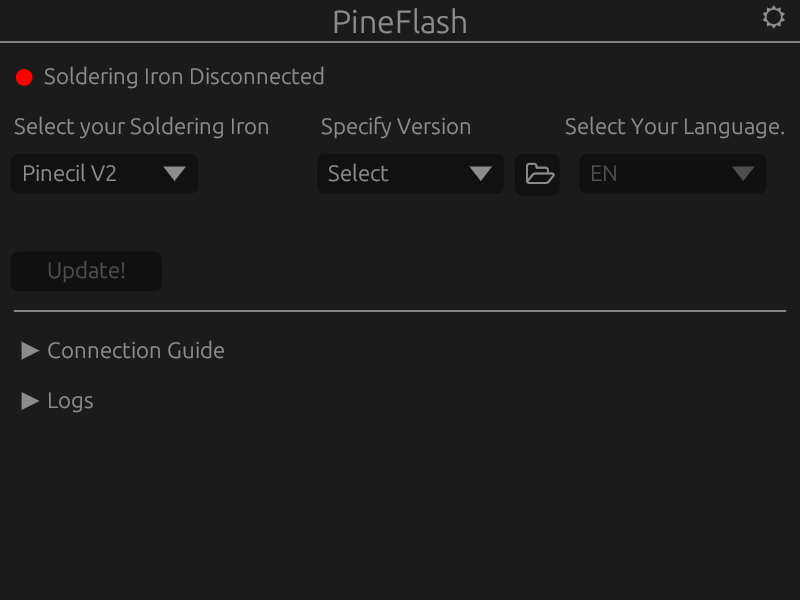
The layout is simple: pick the iron, pick a version, pick a language, press Update. The Connection Guide section repeats the hold-minus instruction with a diagram. The catch showed up in the log panel:
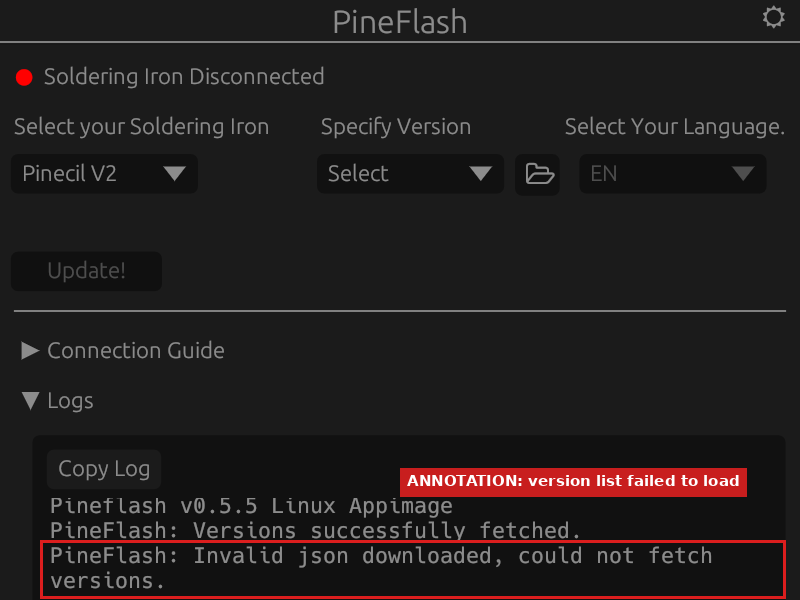
On my run the version list never filled in, and the only entry in the dropdown was “Custom”. My network could reach GitHub fine, so it is probably not a plain connectivity problem, although I haven’t ruled out something like API rate limiting. I suspect the app is tripping on the newer release layout (v2.23 ships a metadata.zip asset), but I haven’t confirmed that. The practical result: with PineFlash 0.5.5 you may need to download the .bin yourself and use the custom file option, at which point blisp is less work. I haven’t tested a real flash with PineFlash, so I won’t claim it works end to end.
Checking the version and getting back out
After the flash, unplug the iron and plug it in normally. Pine64’s wiki says to hold the minus button for a couple of seconds on the home screen to see the firmware version, and it should read v2.23. I would rather show you my own screen than paraphrase a wiki, so a photo of it will go in here later.
Pine64’s wiki says the Pinecil is very hard to brick with a firmware update, and that re-flashing usually fixes a bad one: enter flash mode again and write a known good file. The flash-mode bootloader sits in the chip’s ROM, which is why that route is always available. To roll back, download the older release from the same GitHub page, take its Pinecilv2_EN.bin and run the same command. If something goes wrong, work through these in order:
- Hold the minus button before the cable goes in, and keep holding for 10 seconds or more.
- Try another cable. Some USB-A to USB-C cables carry power only.
- Try another port, or another computer. Some laptop USB-C ports negotiate badly, and a plain USB-A port often works.
- On Windows, name the port with
-p COM3(or whatever Device Manager shows). On macOS, allow the new device when prompted, then replug in flash mode. - Make sure you used the
.bin, not the.dfu.
Next up is the rest of the bench: the tools I use for opening up a device, and why each one earns its place on the desk.
Other parts of the Hardware hacking series: 1, updating the firmware on a Pinecil V2; 2, the bench I work on; 3, using my 5 V FTDI cable on 3.3 V UARTs; 4, finding the UART console on a router I own; 5, reading SPI flash without wrecking it; 6, decoding I2C and SPI with sigrok; 7, JTAG and SWD basics.