Part 5 of 5 in the Flipper Zero series. Part 1: what it actually is and what it can’t do. Part 2: why so many office badges are weaker than they look. Part 3: Sub-GHz remotes, rolling codes and how gates should be built. Part 4: USB keystroke injection and how to lock USB down.
What the Wi-Fi board is
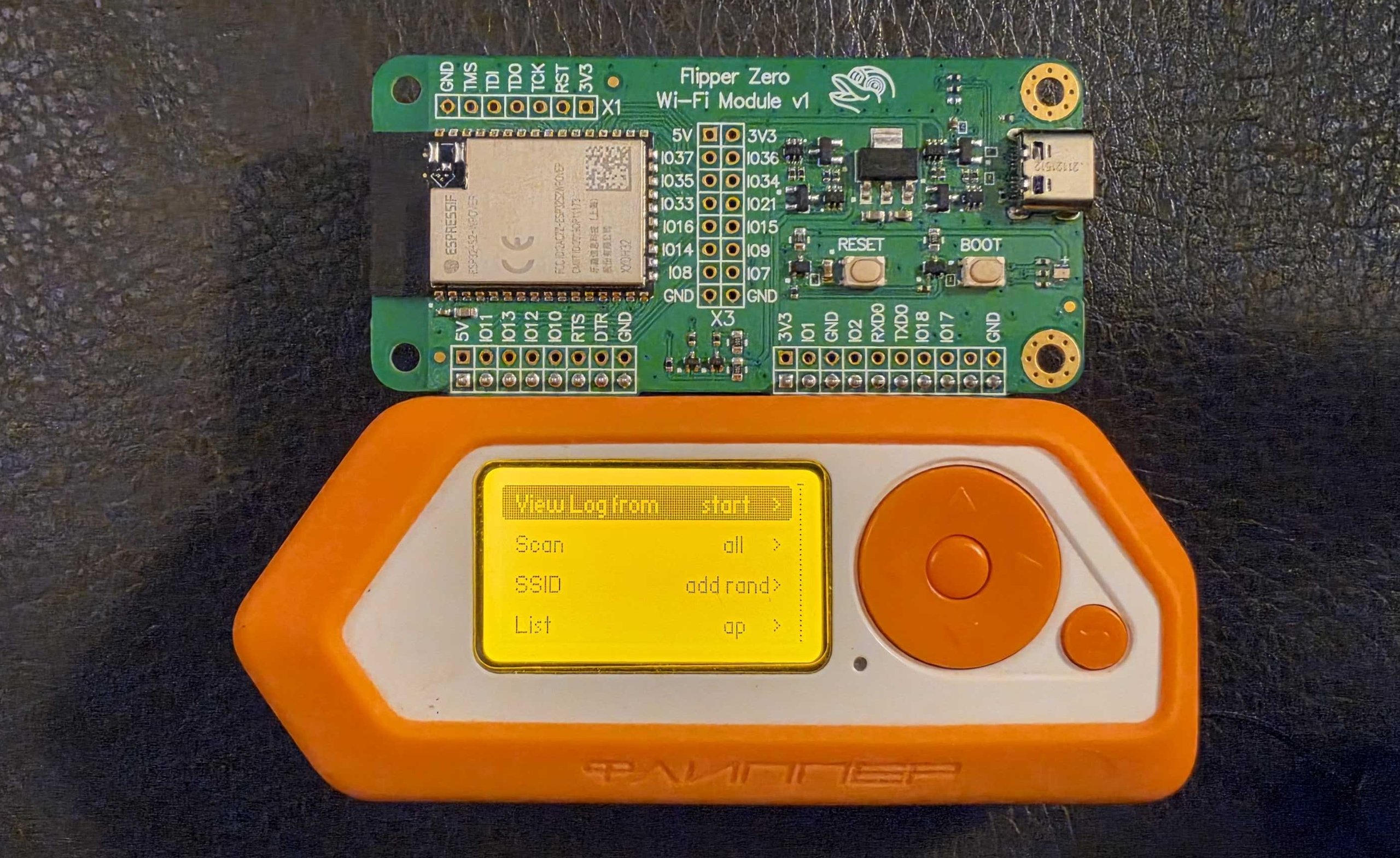
The last part of this series is about the small green board that clips onto the back of the Flipper. Mine is the official Wi-Fi dev board, an Espressif ESP32-S2 module on a carrier, and I run the community Marauder firmware on it. The rules are the same as in the earlier parts: my own hardware, my own network, and defender’s goals. Sending forged frames at networks you don’t control is illegal in most places. In 2014 the FCC fined Marriott $600,000 for using deauthentication frames to stop guests from using their own hotspots, so “it’s only management frames” has been tried as a defense before, and it didn’t work.
Here’s a screenshot from the Flipper mobile app’s remote screen, showing the Marauder GUI’s Wi-Fi submenu on my device.
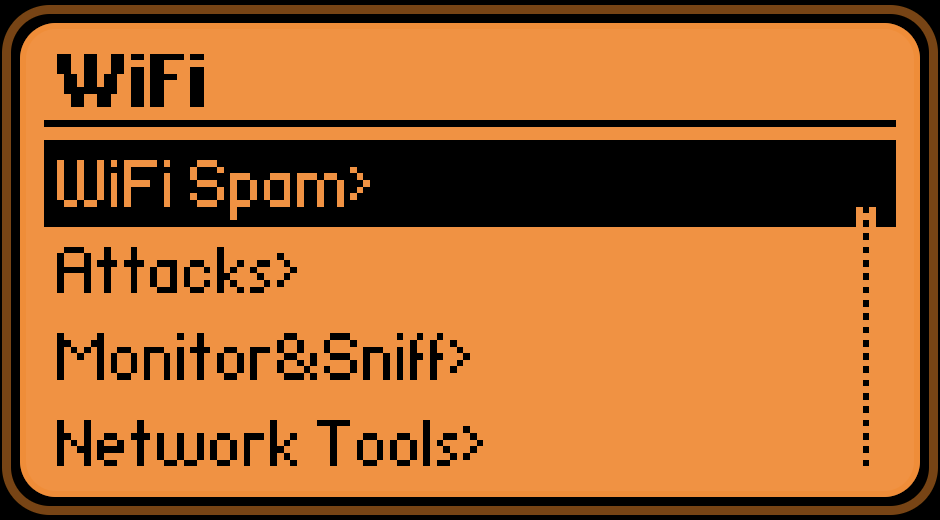
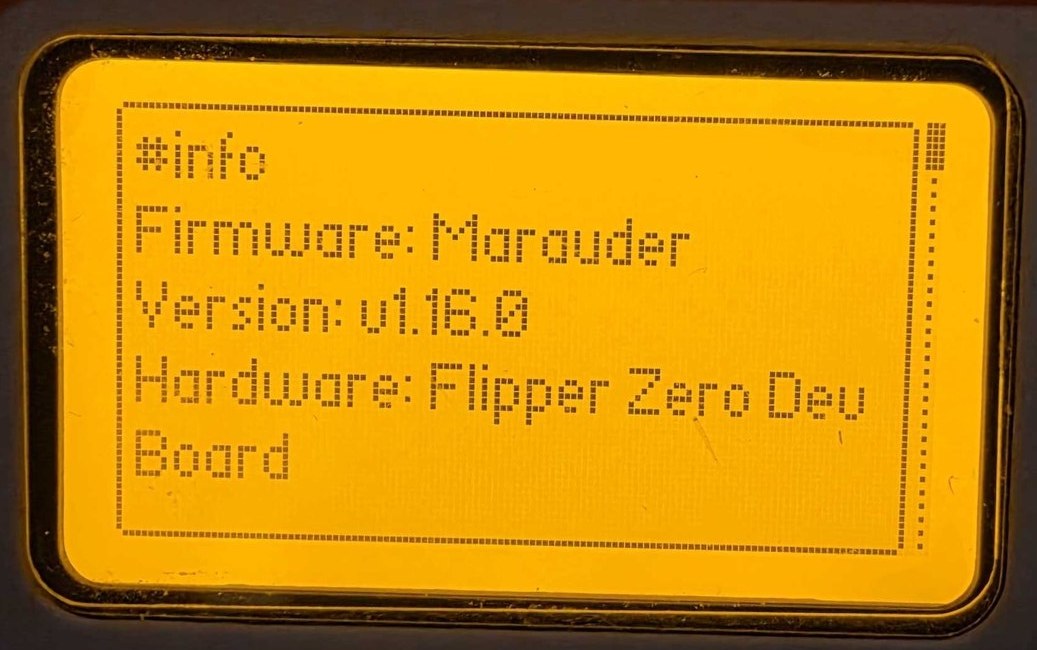
The menu has four entries: WiFi Spam, Attacks, Monitor&Sniff and Network Tools. I’m not going to walk through the offensive ones. What matters to a defender is what each one puts on the air, because that’s what your monitoring has to recognise. The next photo is the info screen on the same board, which shows the firmware name and the hardware it thinks it’s running on.
One limit worth knowing: the ESP32-S2 has a 2.4 GHz radio only, 802.11 b/g/n, and no Bluetooth. If you scan with it, everything on 5 GHz and 6 GHz is invisible. A clean scan from this board says nothing about your 5 GHz network.
What a passive scan gives away
Beacons are broadcast in the clear by design. Anyone in range gets your SSID, the access point’s BSSID, the channel, the signal strength and the security suite from the RSN information element. They don’t need to associate or send any traffic of their own. That element also carries two bits called MFPC and MFPR, management frame protection capable and required. So an outsider can see whether you require protected management frames before they send anything.
I use the scan list as a cheap audit of my own airspace: what am I advertising, on which channels, with which security. I haven’t put a screenshot of a scan result in this post. On my unit it lists the MAC addresses and names of whatever networks are nearby, and those belong to my neighbours.
Deauthentication and what 802.11w changes
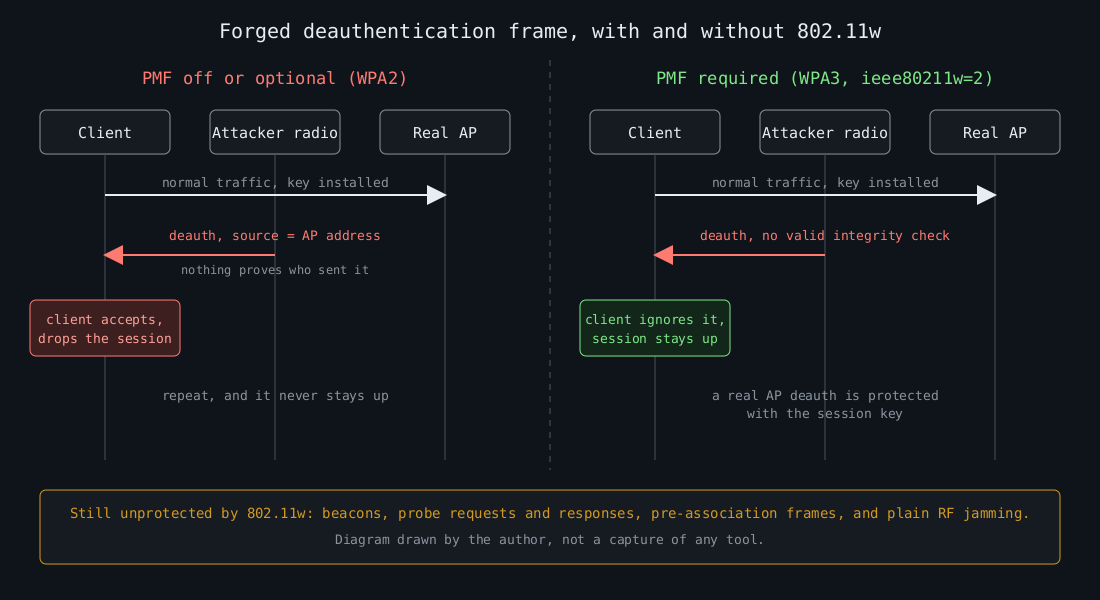
Original 802.11 management frames were unauthenticated. A deauthentication frame only had to carry the access point’s address as its source for the client to believe it and drop the connection. Send them in a loop and the client never stays up. That’s the whole attack. It needs no password and no association.
802.11w, ratified in 2009 and now part of the base standard, protects those frames. After the four-way handshake, unicast management frames are encrypted and integrity checked with the pairwise key, and broadcast ones are protected with an integrity group key. A forged deauth fails the check and the client throws it away. There’s also an SA Query exchange for when an unprotected disassociation arrives for a session the client believes is still alive.
The diagram shows the same forged frame against a client with and without protection. I drew it. It isn’t a capture from any tool.
Protected management frames are optional in WPA2 and mandatory in WPA3. The Wi-Fi Alliance started certifying WPA3 in 2018, and certification requires PMF. The catch is transition mode, where one SSID accepts both WPA2-PSK and WPA3-SAE clients. PMF is only “capable” there, so a WPA2-only client on that SSID can still be kicked off.
The diagram also lists what 802.11w leaves alone. Beacons, probe requests and responses, and the frames exchanged before association stay unprotected. Nothing in software stops someone from jamming the channel. PMF raises the cost of one specific cheap attack. It doesn’t make the radio link trustworthy.
On a hostapd-based access point, requiring it for a WPA3-only network looks like this:
wpa=2
wpa_key_mgmt=SAE
rsn_pairwise=CCMP
ieee80211w=2
sae_require_mfp=1
sae_pwe=2
sae_pwe=2 selects hash-to-element only. That closes the timing side channel behind the SAE flaws that Mathy Vanhoef and Eyal Ronen published as Dragonblood in 2019 (CVE-2019-9494 and CVE-2019-9495). It also locks out clients that only speak the older method, so test your device mix first. For a mixed network, use wpa_key_mgmt=WPA-PSK SAE with ieee80211w=1 and accept the downgrade exposure.
Evil twins and captive portals
Marauder can also stand up a fake access point with a login page. That’s the evil twin: same SSID, different BSSID, often a stronger signal, and a portal asking for a password. On an open network the client can’t tell the difference at all. With WPA3-SAE, the twin has to know the password to complete the handshake, because SAE authenticates both sides. With WPA2-PSK the same holds in principle, but everyone who has the shared key can build a convincing twin, and that includes former employees and guests.
The enterprise case is where I see the real damage. A client set to PEAP-MSCHAPv2 that doesn’t validate the RADIUS server certificate will happily send its challenge response to a twin, and MSCHAPv2 responses can be cracked offline. The fix is on the client side. Push a Wi-Fi profile through MDM that pins the CA and the expected server name, and prefer EAP-TLS where you can issue device certificates.
What to watch for
Detection comes down to a few facts you can state precisely:
- Your SSID appears from a BSSID that isn’t in your access point inventory.
- Your SSID appears with a different security suite than your own access points advertise.
- A burst of deauthentication or disassociation frames, or a sudden crowd of unfamiliar SSIDs on one channel.
You need a monitor-mode adapter, or the wireless controller’s own rogue detection, to see any of this. With a Linux adapter in monitor mode, this shows deauthentication frames (management subtype 12) with their reason codes:
tshark -i wlan0mon -Y 'wlan.fc.type_subtype == 0x000c' \
  -T fields -e frame.time -e wlan.sa -e wlan.da -e wlan.fixed.reason_code
A handful of deauths a day from real roaming events is normal. Hundreds per second aimed at one client is not. Alert on the rate per source. When PMF is required, clients ignore the frames anyway, so the alert tells you someone is trying, not that something broke.
Two older bugs are worth a mention because PMF doesn’t cover them. Kr00k, CVE-2019-15126, let some Broadcom and Cypress Wi-Fi chips encrypt data with an all-zero key after a disassociation. It was fixed in client firmware, which means it gets fixed by patching laptops and phones. Treat Wi-Fi chip firmware like any other software you have to update.
If I had to pick one change from this part, it would be requiring PMF on every SSID whose clients all support it, then adding the unknown-BSSID alert to the same place where you read your other detections.